Text Pongu one-to-one
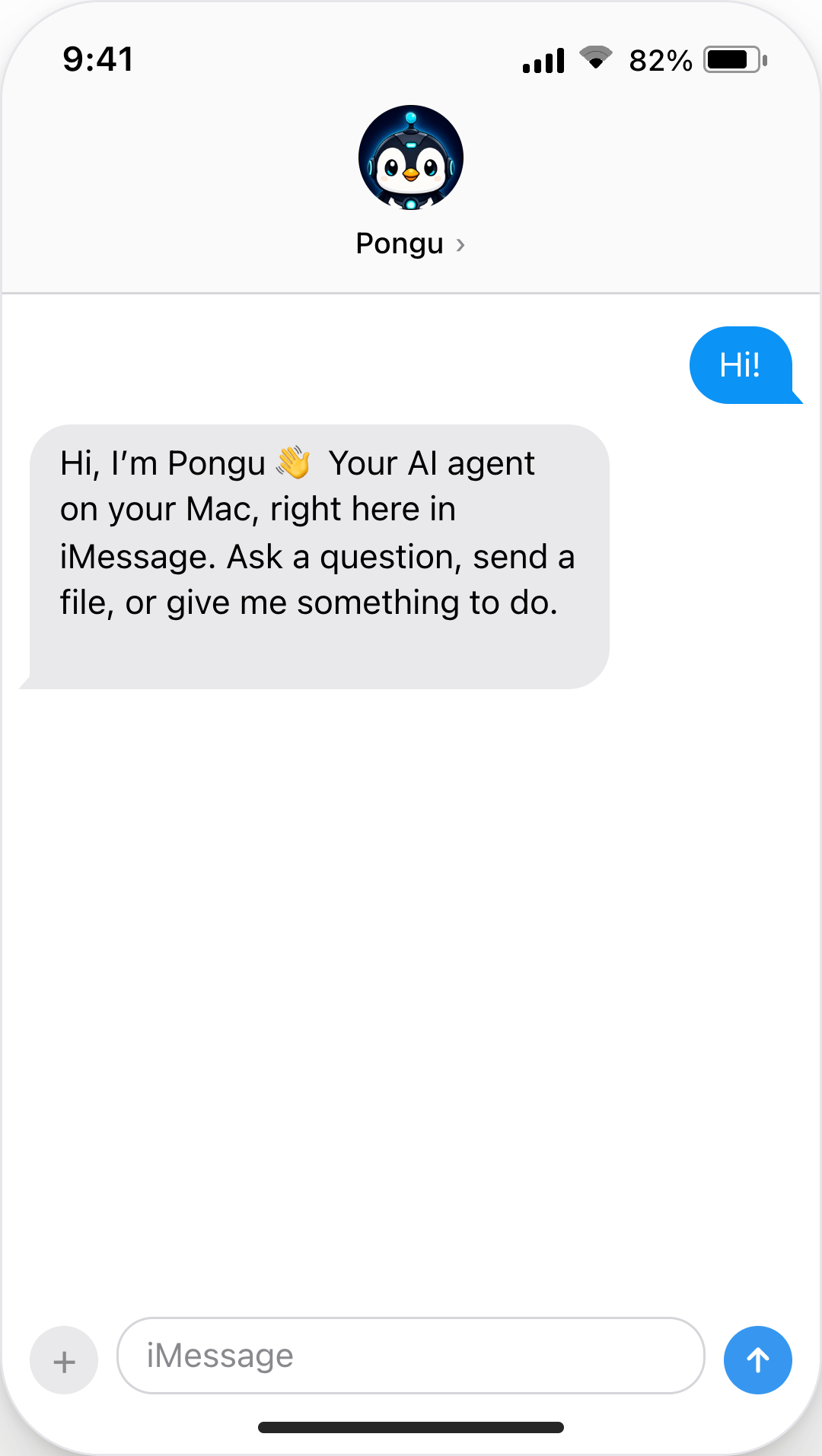
Start with “Hi,” then ask for help, share a file, or pick up your ongoing conversation.
Pongu AI for macOS
Pongu is a native macOS app that connects your favorite AI agents to iMessage in 2 minutes. Send a photo, share a file, or leave a voice message, wherever you are.
Available now for Apple silicon Macs with macOS 14 or later.
Apple silicon · macOS 14+ · separate Apple Account required
Built around iMessage
Reach your Mac’s AI agent from the Messages app you already use. No extra app to install on your iPhone.
Start with “Hi,” then ask for help, share a file, or pick up your ongoing conversation.
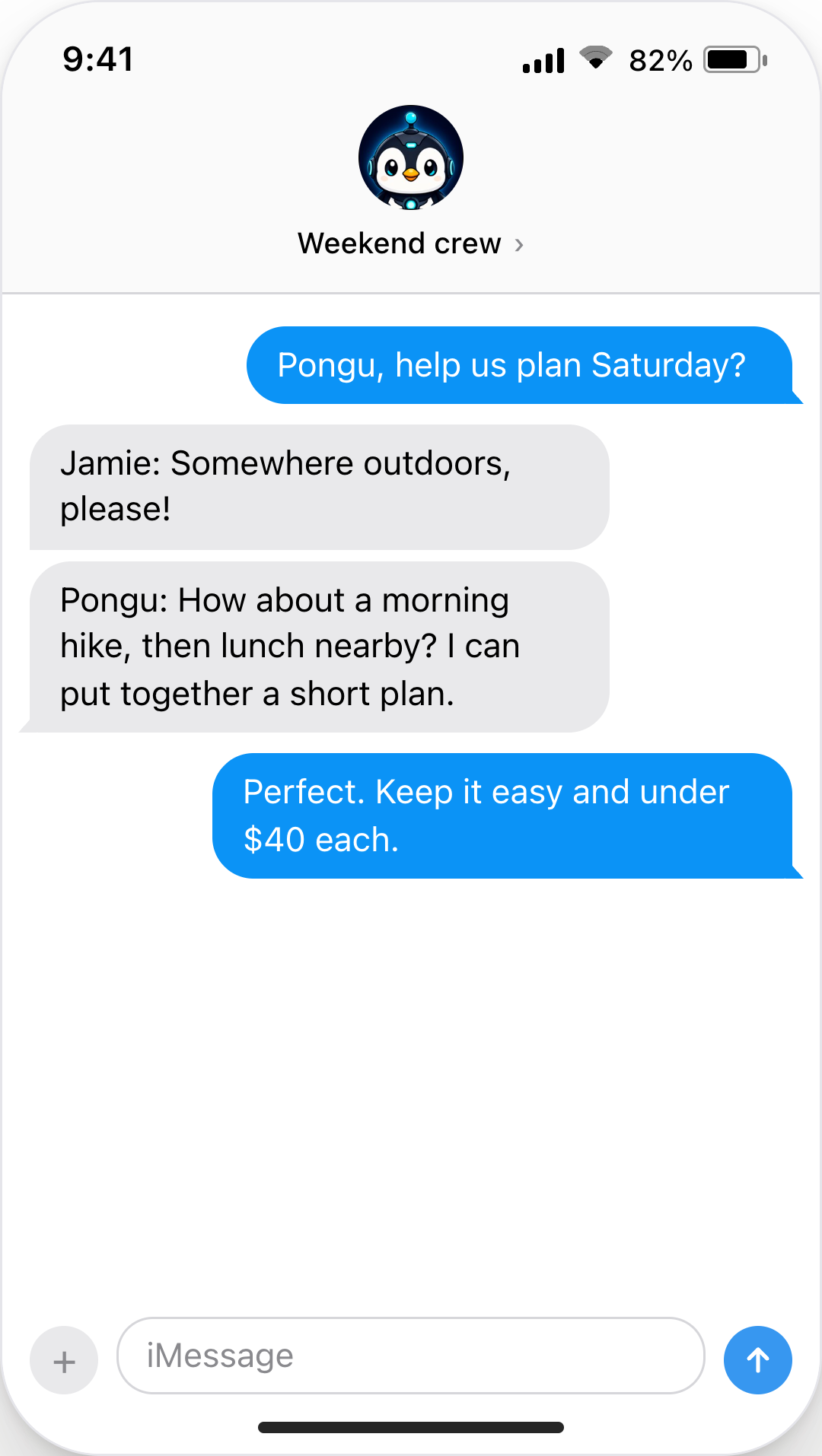
Give your group an agent in the same Messages conversation. Choose which groups Pongu can answer, with memory kept separate for each chat.
Setup and compatibility
Pongu works with the Codex, Claude Code, or Pi you already have installed and signed in. Install Pongu on your Mac, with no companion app needed on your phone.
Use an Apple-silicon Mac on macOS 14 or newer. A spare Mac is ideal: keep it powered on and connected when you want the agent online.
Sign in to Messages with a separate Apple Account for the agent’s contact identity. On a shared Mac, use a separate macOS user account for Pongu’s files, apps, and settings.
Connect your installed Codex, Claude Code, or Pi setup. Grant Pongu AI Full Disk Access and Messages Automation, then choose the chats it may answer. If you’re new to these AI apps, install and sign in to one first.
Connect the installed Codex app or CLI with your existing sign-in.
Use your installed Claude Code setup and existing sign-in.
Use your OpenRouter models through an installed Pi setup.
Attachments, both ways
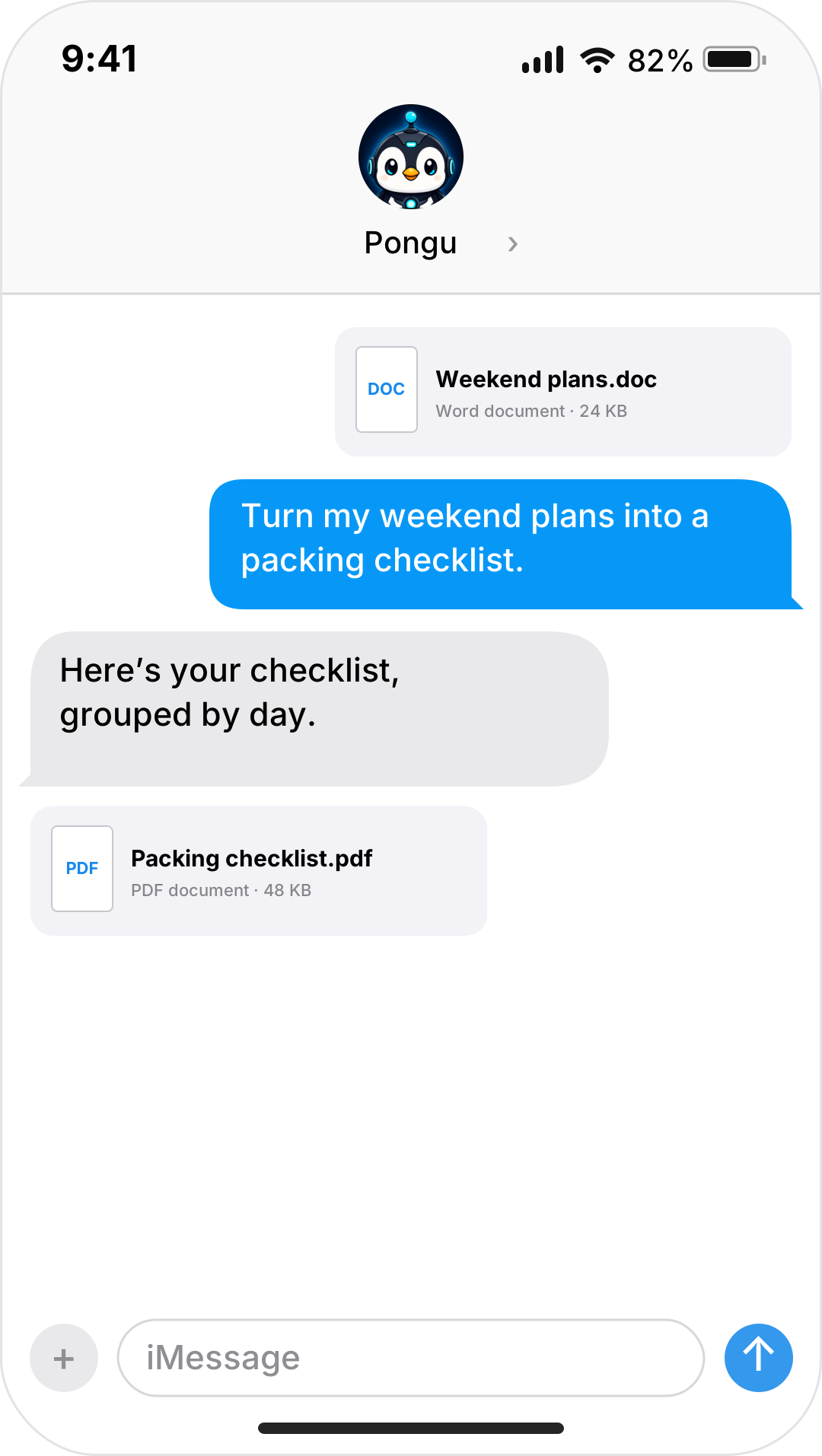
Share photos, screenshots, and documents in Messages. Your agent can work with them and send a file or image back into the same conversation.
The files your agent can work with depend on its model and tools.
Voice messages*
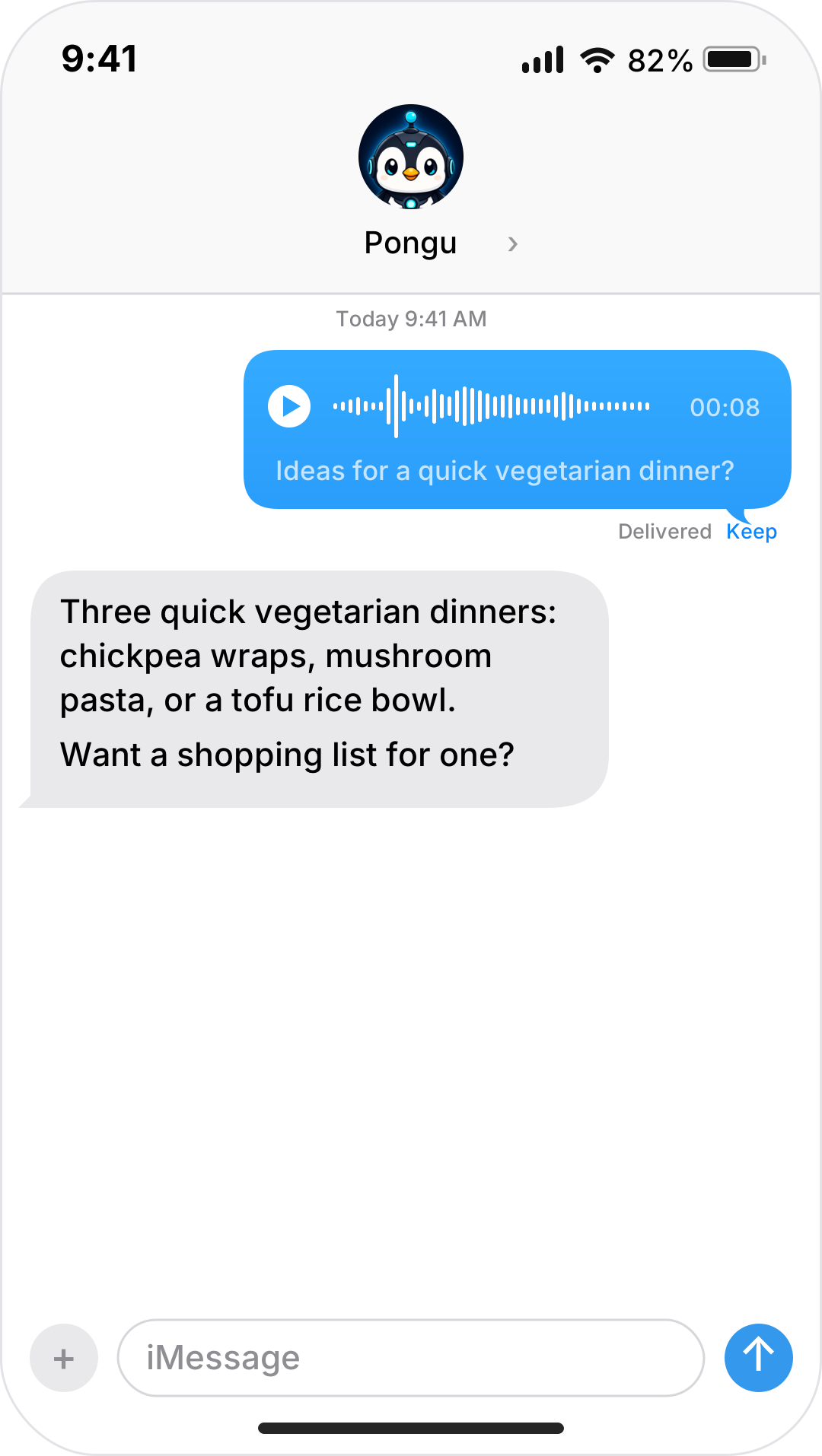
Send a voice message when typing gets in the way. Pongu transcribes it on your Mac so your agent can respond in the same chat.
*Voice messages are optional. One-time speech model download: about 630 MB.
An agent that fits your day
As you chat, Pongu remembers who’s in the conversation, their preferences, and what you’ve been working on together. Each chat has its own memory. Memory is stored locally on your Mac; review, turn off, or erase it whenever you want. Relevant context goes to your AI when you make a request.
Ask your agent in iMessage to check your stock portfolio each morning, search for good sales every week, or send a daily news briefing. It uses the tools and services connected to your AI setup. Review and pause schedules in Pongu.
Just ask your agent to change settings, schedule recurring jobs, create skills, or connect MCP tools. Your agent works with your chosen AI setup; account sign-ins and macOS permissions may still need your attention.
Permissions and access
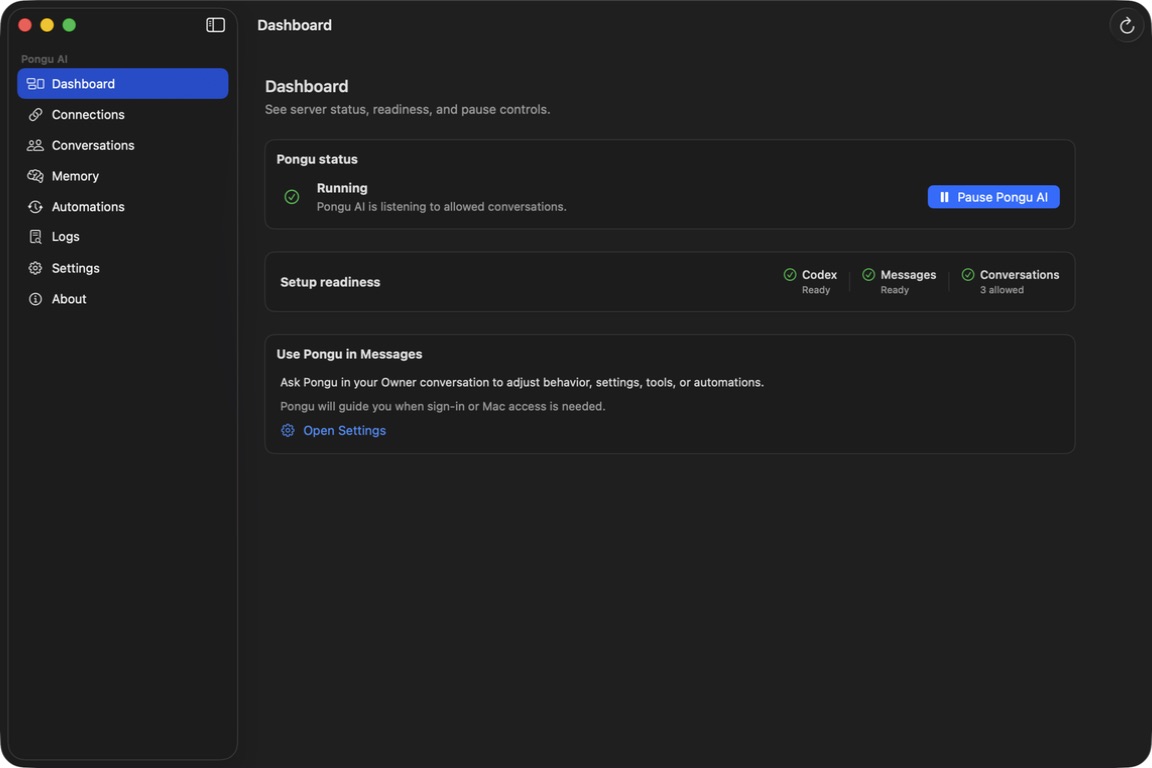
Decide who can reach your agent and which services you connect. Pause Pongu from your Mac whenever you need to.
Choose exactly which direct conversations and groups Pongu answers. Only you can change Pongu’s settings, through your private chat. Grant access only to people you trust with your agent’s tools and files.
Review connected MCP services in Pongu and ask your agent to configure them in iMessage. Sign-ins and tool permissions belong to your AI setup; Pongu’s chat access applies to that setup as a whole, rather than individual MCP tools. Privacy details →
Pricing and download
A paid Pongu license covers two Macs. The free trial lasts seven days on one Mac, with no card and no automatic renewal. AI subscriptions, API usage, and connected services are paid separately.
Activation requires internet access. Pongu checks licenses daily in the background; an activated paid license keeps working during connection or verification-service outages. The free trial ends at its original deadline, including while offline.
For personal use only. For commercial use, contact [email protected].
Pongu AI for macOSApple silicon · macOS 14+
Download the installer, move Pongu AI to Applications, then open it. Start the seven-day trial in Pongu with no card and no automatic renewal.
Already using Pongu? Quit the app, download this version, replace Pongu AI in Applications, and reopen it once to enable future automatic updates.
Try Pongu free for seven days before buying. Purchases are non-refundable except where required by law. Polar handles checkout, receipts, and license delivery under Polar’s Buyer Terms. See our purchase terms.
Try Pongu for seven days on one Mac. In the app, choose Start a free trial, enter your email, and verify the six-digit code.
Straight answers
Practical answers about accounts, costs, access, and uptime.
An Apple-silicon Mac on macOS 14 or newer, Messages, an authenticated AI app, and Full Disk Access plus Messages Automation permissions. A spare Mac is ideal; on a shared Mac, use a separate macOS user account. Keep that user signed in with Pongu running and the Mac awake and online. Replies and scheduled work depend on it.
Yes. Sign in to Messages with a separate Apple Account to give your agent its own contact identity. This is different from a macOS user account, which separates local files, apps, and settings. Use the agent’s Apple Account in Messages within the macOS user where Pongu runs.
Choose OpenAI Codex, Claude Code, or Pi with OpenRouter models. Install and sign in to your chosen AI app before connecting it to Pongu. Pongu does not include AI access: provider subscriptions, API usage, and connected services are separate. Your AI app manages its credentials and tools.
Pongu costs $20 once for two Macs, for personal use. Try it free for seven days on one Mac, with no card and no automatic renewal. AI costs are separate. Purchases are non-refundable except where required by law. Polar handles checkout, receipts, and order support; see our purchase terms for details.
Yes. Send photos and files, and receive files and images from your agent; supported formats depend on its model and tools. Optional voice messages work after a one-time download of about 630 MB. Pongu transcribes incoming voice locally and sends the text to your AI. Voice replies and live calls are not included.
macOS permissions give broad Messages access; Pongu processes only configured conversations, without OS-level per-chat isolation. It uses a local helper, not an official iMessage API, and is not affiliated with Apple. Pongu’s memory, state, settings, and diagnostics stay local; requests and relevant context go to your chosen provider and tools. See our privacy details.
Pongu runs unattended and has no per-action approval screen. Your AI app manages its tools and permissions, so actions can happen without asking you first. Give access only to people you trust with the agent’s tools and files. You can pause the agent from Pongu on your Mac.